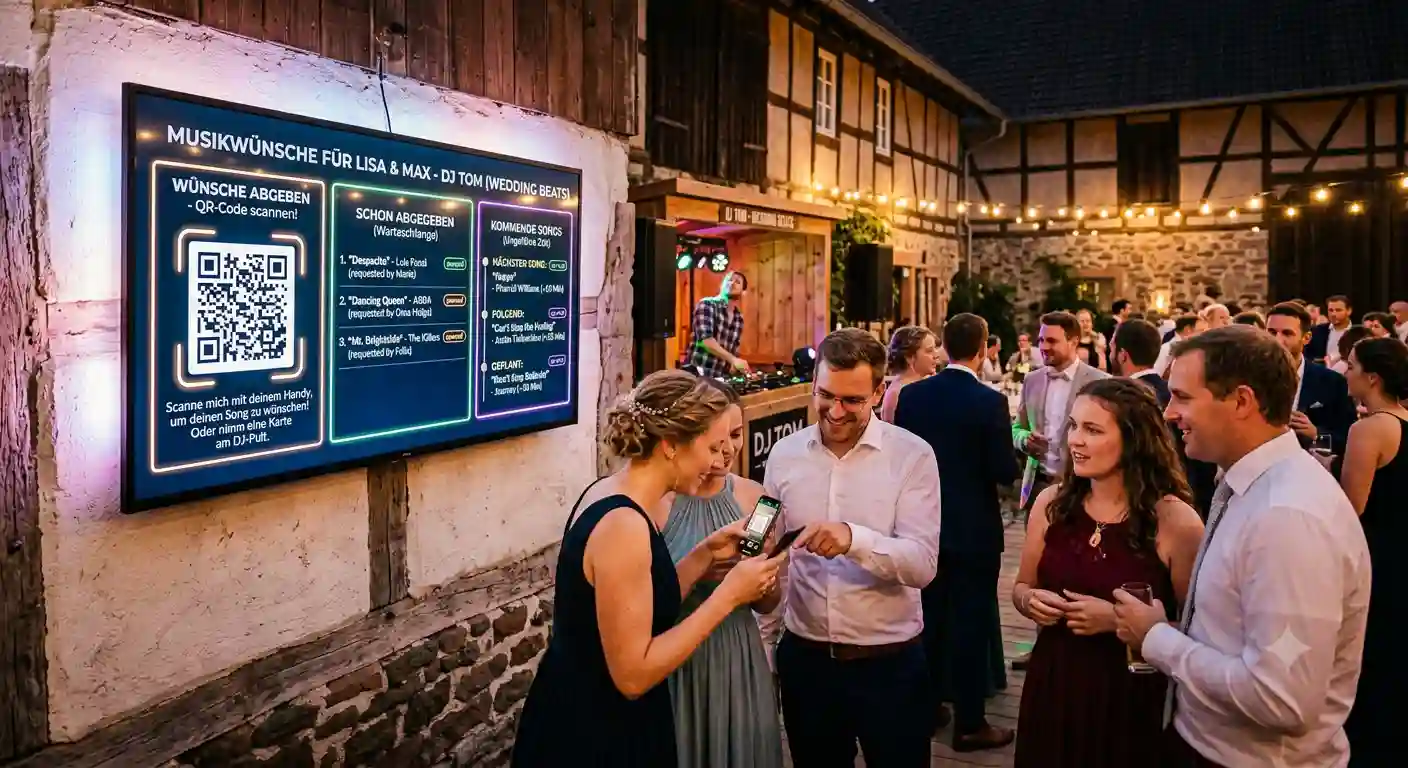
You've got the request system set up, the codes are on the tables — and yet only twelve people end up making a request all night. Not because they don't want to. But because they simply never noticed the small table tent next to the drinks menu.
And those who did submit a request keep coming up to ask when their song will be played. Two problems, one cause: The request process is invisible. That's exactly what the request monitor changes.
What Is the Request Monitor?
The request monitor is a full-screen view that you display on a projector screen, TV, or via a beamer in the venue — showing the most-requested songs and a large QR code for guests to join in.
It turns the quiet request list in your dashboard into a visible part of the evening. Everyone in the room can see at a glance what's been requested, what's trending, and how they can participate themselves.
Connect the Request Monitor Without a Login
The monitor view runs without any additional login — you open the view, connect your laptop to the screen, and you're done.
In practice: laptop via HDMI to the TV or projector, drag the monitor view to the second screen, go full-screen. No second account, no app, no installation, no extra hardware. If you've got your laptop with you anyway — and you do — the monitor is up on the wall in under a minute.
Whether you're playing in a sports hall, a vineyard, or a club: a projector or TV is available almost everywhere. And if not, a second laptop or a tablet on your booth will do in a pinch.
Why a Large QR Code on the Screen Generates More Requests
A QR code on the big screen is scannable from every corner of the room — unlike the table tent on table three.
That's the real lever. Someone standing by the dance floor turns to the screen, lifts their phone, scans. No searching, no table, no "Where was that code again?" On top of that, there's a second, underrated effect: Visibility drives imitation. When people can see that others have already made requests, significantly more guests join in compared to a silent card on a table.
For how the request system works in general, see the article Song Requests via QR Code.
Display Requests Transparently Instead of Constantly Explaining
On the monitor, your guests can see for themselves which songs are leading — replacing the questions at the booth.
The most common question of any evening isn't "Can you play something by…?" but "Is my song still coming?". The screen answers that question for you, continuously and for everyone at once. Combined with the live request status on each guest's phone, it creates a closed loop: the guest makes a request, sees their status on their own display, and sees on the screen how their song ranks in the field.
What this means for you: you're back behind the decks instead of in explanation mode.
The Most-Requested Songs as a Mood Barometer
The monitor shows the most-requested titles at the top — for you, it's a reading of the room; for guests, it's like the charts of the evening.
Songs requested multiple times are already bundled and counted rather than appearing ten times individually in your list. On the screen, this creates its own dynamic: guests see which song is about to reach the top — and give it the final push. You get a much clearer picture of what the dance floor actually wants than through shouted individual requests.
The decision is still yours. The monitor shows demand — it doesn't dictate the playlist.
Using the Request Monitor at Weddings and Corporate Events
At seated events, the screen is often the only spot that every single guest actually sees — making it the best place for the QR code.
- Weddings: After dinner, photos are often shown on the screen anyway. Switch to the request monitor during the dance phase — guests at their tables will only start making requests this way. More on this: Wedding DJ: Managing Song Requests Like a Pro.
- Corporate events: The projector is already there. A screen with the top requests breaks the ice faster than any announcement.
- Club parties and tent festivals: Large spaces, scattered guests. A central screen reaches corners that no table tent ever could.
- Clubs and bars: Where TVs are already on the wall, the monitor costs you exactly zero extra effort.
- Birthdays, carnival, festivals: Anywhere lots of people want to have a say at the same time.
When to Turn the Monitor Off
The monitor is an option, not an obligation — you show it when it helps and hide it when it's in the way.
During the first dance, the best man's speech, or a ceremony, a request list on the wall has no place. Same goes when you're running your peak set and don't want any new requests coming in. For that, there's the request traffic light, which lets you visibly throttle or stop incoming requests — read more in Stop Annoying Song Requests: The Request Traffic Light for DJs.
Which Plan Includes the Request Monitor?
The request monitor is already included in the Free plan and therefore also in Standard and Pro.
You don't need to unlock or add anything to try it at your next gig. If you want more after that — unlimited requests, request traffic light, live status, custom branding, or the tip function via PayPal — the system scales with you.
Practical Tips for Your First Use
- Test beforehand. Run through HDMI, resolution, and full-screen mode once at home — not five minutes before doors open.
- Mount it high. The QR code needs to be visible over people's heads, otherwise no one in the second row can scan it.
- Make one announcement. A single sentence on the mic ("Requests go through the code on the screen") often doubles participation right away.
- Don't leave it running the whole time. Ceremony, speeches, cake cutting — monitor off. After that, back on.
- Disable screensaver and power saving. The classic blunder.
Conclusion
The request monitor solves two problems at once: it makes the QR code visible to everyone — and it answers the question about their song before it's even asked. No login, no extra tech, with the laptop you've already got with you.
And the best part: you can simply try it at your next gig without booking anything.